
.png)
A Practical Guide to Your Beep Integration With Jira

Connecting Beep with Jira is about more than just linking two apps. It’s about building a direct bridge between the visual feedback you get in Beep and the project management powerhouse that is Jira. Imagine your team's comments and on-screen notes turning into detailed Jira issues instantly, complete with screenshots and all the technical data your devs need.
This connection completely slashes manual data entry and, more importantly, closes the frustrating gap between user feedback and actual development work.
Why Connecting Beep and Jira Transforms Your Workflow
Before we jump into the setup, let's get real about why this is such a game-changer. It's not just a nice-to-have; it's a fundamental upgrade to how your team operates. It takes the often chaotic, unstructured world of user feedback and funnels it directly into the organized, actionable environment of your dev sprints.
The true magic of an integration with Jira is turning those scattered "hey, this looks weird" comments into a centralized, easy-to-manage pipeline.
No more designers manually typing up UI notes. No more product managers attaching endless screenshots to emails. This connection does the heavy lifting for you. With a single click, a visual annotation on a webpage becomes a rich Jira ticket, already filled with the essential context.
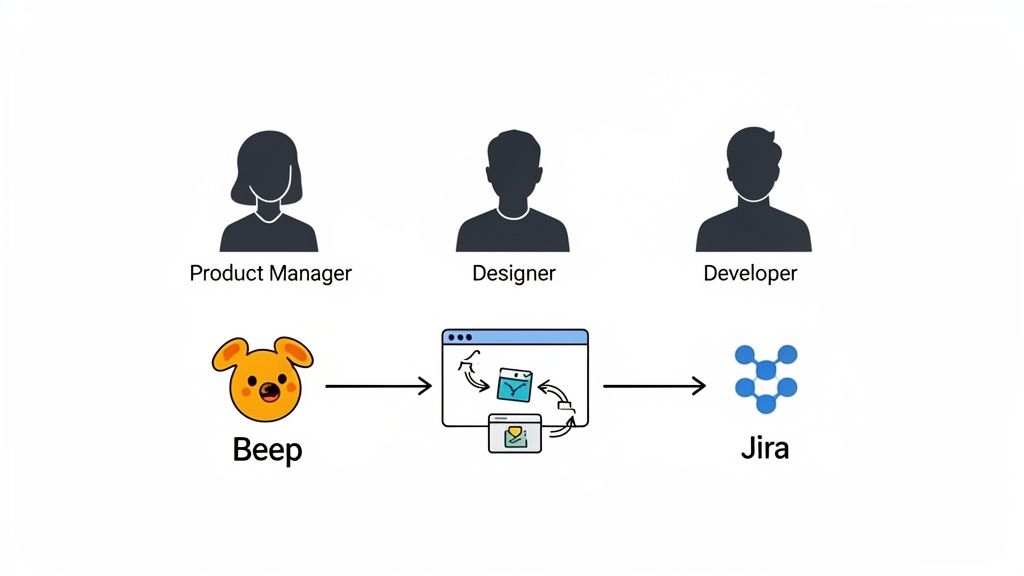
To really drive this home, let's look at how this integration solves some of the most common headaches teams face every single day.
How the Beep and Jira Integration Solves Common Problems
Team Role | Before Integration (The Pain Point) | After Integration (The Solution) |
|---|---|---|
Product Manager | "I'm juggling feedback from Slack, email, and meeting notes. Prioritizing is a nightmare, and I'm sure things are falling through the cracks." | "All feedback lands directly in our Jira backlog. I can easily see everything in one place, prioritize tickets, and assign them to the right sprint." |
Designer | "I spend hours taking screenshots, annotating them, and then writing up detailed descriptions for developers. It’s tedious and repetitive." | "I leave a comment directly on the UI element in Beep, and a Jira ticket is created automatically with the screenshot and my notes. It takes seconds." |
Developer | "The bug reports I get are so vague. 'The button is broken' doesn't help. I have to chase people down just to get basic info like their browser." | "I get a perfect bug report every time. It has the exact screenshot, URL, browser version, screen size—everything I need to start fixing it immediately." |
QA Tester | "Documenting bugs is the most time-consuming part of my job. For every bug, I have to manually create a Jira ticket and upload all the evidence." | "I find a bug, click, type a quick description, and it's in Jira. I can report 10 bugs in the time it used to take me to document one properly." |
As you can see, this isn't just a minor tweak. It fundamentally changes the day-to-day reality for everyone on the product team, saving time and eliminating a ton of frustration.
Unlocking Team Efficiency
For product teams, the benefits are immediate. This automation gets rid of the tedious back-and-forth that kills productivity, freeing up hours every single week. Developers get crystal-clear bug reports, designers get precise visual feedback, and managers get a real-time view of issues as they pop up. It’s the kind of synergy modern teams need to stay competitive.
A direct integration eliminates ambiguity. When a developer sees a bug report that includes the exact screenshot, browser version, and screen resolution captured by Beep, there's no room for misinterpretation.
This clarity speeds up the entire development cycle, from the moment an issue is spotted to the moment it's resolved. It’s not just a feeling, either. The need for better collaboration is backed by data. One Atlassian report found that 84% of teams worry their products will fail without robust collaboration tools. You can read more about their findings on their site.
From Feedback to Actionable Tasks
The real power here is turning qualitative feedback into quantitative action. Every single piece of input becomes a trackable, manageable task inside the system you already use every day.
This structured approach is a lifesaver for a few key reasons:
A Single Source of Truth: All feedback lives in Jira. Nothing gets lost in random Slack threads or buried in an email inbox ever again.
Smarter Prioritization: When all issues are in one backlog, product managers can make much better decisions about what bug fixes and feature requests to tackle next.
Clear Accountability: Every Jira ticket has an owner and a status. This ensures every piece of feedback is seen, addressed, and tracked to completion.
By using the right user feedback tools, you can build a powerful engine for growth. The Beep and Jira integration is what makes this engine run, ensuring no valuable insight ever gets overlooked.
Your Pre-Flight Checklist for a Smooth Connection
Connecting new tools can sometimes feel like a chore, but a little prep work goes a long way. I’ve learned from experience that spending just a few minutes getting your ducks in a row first can save you a ton of headaches later. Think of this as your pre-flight check to guarantee a smooth, error-free connection right from the get-go.
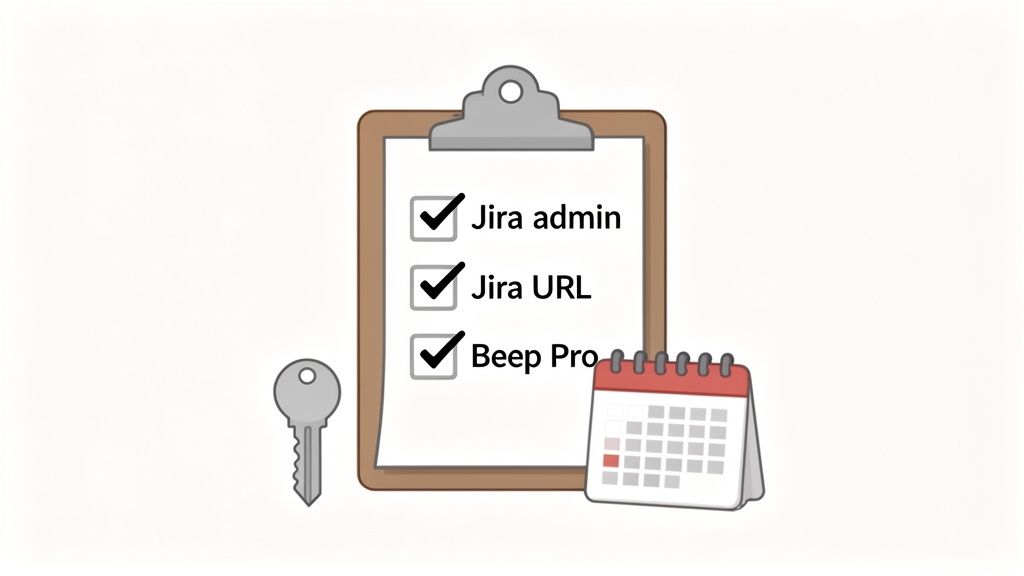
Before you even think about diving in, let's make sure you've got the right permissions. Honestly, nothing kills the momentum of a new setup faster than hitting a permissions wall you weren't expecting.
For this integration with Jira to work, you'll need two things:
Jira Project Admin Rights: This one's non-negotiable. You need the authority to install and configure apps in the specific Jira projects you want to link up with Beep.
An Active Beep Pro Plan: The Jira integration is one of the key features included in our Pro and higher-tier plans. Just double-check that your workspace is on the right subscription.
Gather Your Key Information
Okay, with permissions sorted, the next step is to grab a few key details. Having these ready to copy and paste will make the actual connection process feel almost automatic.
First, you’ll need your Jira instance URL. This is the web address you use to access Jira, and it usually looks something like .
You'll also need the specific Jira project keys you plan to connect. For instance, if your development team works in a project called "Frontend Bugs" and your mobile team uses "Mobile App," the keys you're looking for would be something like and .
Pro Tip: I always recommend just opening a simple text file and pasting your Jira URL and project keys into it. It's a tiny step that saves you from clicking around and hunting for them mid-setup. It keeps the flow going.
Finally, while our integration walks you through a simple OAuth process, it never hurts to know a bit about what's happening behind the scenes. A secure connection depends on solid authentication. It’s useful to be familiar with the principles of mastering API key authentication to really appreciate the security measures we’ve built in. Trust me, having that background knowledge can make troubleshooting a breeze if any issues pop up down the line.
Alright, with the prep work out of the way, it's time for the main event: linking Beep directly to your Jira instance. This is where we build the bridge that lets feedback flow seamlessly from one app to the other. The good news? We designed this to be as painless as possible, using Jira's own secure system to get you connected in just a few clicks.
First up, head over to your Beep workspace settings and click on the 'Integrations' tab. Think of this as your command center for connecting all your favorite third-party tools. You'll spot a list of apps—just find Jira and select it to kick things off.
Authorizing Secure Access with OAuth
We use OAuth 2.0 to talk to your Jira account, which is the gold standard for secure authorization. What this really means is you'll never have to give us your Jira password. Instead, you grant Beep specific, limited permissions to do things on your behalf, like creating new issues in the projects you choose.
The whole process is handled directly by Atlassian, so you know it's secure. When you start the connection, you'll be whisked away to a familiar Jira authorization screen. This is where Jira asks for your permission to let Beep access your instance. It’s a crucial step that ensures you’re always in the driver’s seat.
Here’s a peek at what that initial connection screen looks like inside Beep.
This is simply where you'll pop in your Jira URL, telling Beep which specific instance you want to hook into.
Once you’re on the Jira authorization page, it'll ask you to grant a few permissions. It's really important to approve these. Without them, the integration with Jira can’t create tickets or attach screenshots, which is pretty much the whole point of connecting them!
Selecting Your Jira Site
After you give the green light, Jira sends a confirmation back to Beep, and just like that, the two are securely connected. If you happen to be a part of multiple Jira sites, no problem. Beep will prompt you to choose which one you want to link to this particular workspace.
For instance, your company might have one Jira site for the dev team () and a totally separate one for the marketing crew (). You’ll just pick the right one from a simple dropdown menu.
Key Takeaway: The entire OAuth process is built for your security. By authenticating directly with Atlassian, your credentials stay private, while Beep gets just enough permission to automate your workflow without overstepping.
This method is standard practice for how modern apps communicate. If you're curious to see how this fits into the bigger picture, check out some of the top API integration examples that power some of the slickest workflows out there today.
Now that Beep and Jira are officially talking to each other, we get to the fun part. The next step is all about telling Beep exactly how you want it to transform a simple annotation into a perfectly formatted Jira issue. We'll do that by mapping the fields between the two systems.
Alright, you've got the connection sorted. Now for the fun part—making that connection actually work for you. This is where you tell Beep how to turn a simple comment on your website into a perfectly detailed Jira issue your dev team can jump on right away.
Getting your field mapping right is the secret sauce. It’s what completely removes the soul-crushing task of manual data entry. You’re essentially building a template that links Beep's data—like the comment itself, who wrote it, and their browser info—to the right fields in Jira.
You set this up just once, and from then on, every single ticket created from Beep is rich with context from the get-go.
Defining Your Core Field Mappings
The whole point here is to cram as much context as possible into each Jira ticket without anyone having to lift a finger. After setting this up for countless teams, I've found a few mappings that are absolute must-haves, especially for bug reporting.
Beep Comment Text to Jira Summary: This one's a no-brainer. Whatever your teammate types into the Beep comment box becomes the title of the Jira ticket. It makes the issue instantly recognizable when you're staring at a massive backlog.
System & User Info to Jira Description: This is where the magic really happens. Beep is smart enough to grab all the crucial diagnostic data automatically. You can map the reporter's name, their browser version, OS, and even screen resolution straight into the Jira description.
Beep Screenshot to Jira Attachment: Non-negotiable. Every Beep comment comes with a screenshot, and it absolutely has to be attached to the Jira issue. Visual context is gold; it’s often the quickest way for a developer to understand what’s going on.
By automatically stuffing the description with all that technical goodness, you completely eliminate the need for developers to ever ask, "What browser are you on?" This one move can save hours of back-and-forth each week and seriously speed up how fast things get fixed.
With this setup, every bug report is more than just a complaint; it's a complete, actionable brief. If you want to take it a step further, check out our guide on how to write bug reports that get fixed, not ignored. The principles there are a perfect complement to this automated workflow.
Customizing Mappings for Different Workflows
Look, not every piece of feedback is a bug. You'll get feature requests, UI ideas, or just simple typos. The beauty of this integration is that you can tweak your mappings for all these different scenarios.
For example, a feature request probably doesn't need screen resolution details, but it definitely needs a clear user story. To make sure every ticket is genuinely useful, it's worth thinking about your process, and these top quality assurance tips for test case planning offer some great insights you can apply here.
To give you a practical idea of how this looks, here’s a table outlining some recommended field mappings I’ve seen work well.
Recommended Field Mapping from Beep to Jira
This table is a practical guide for mapping Beep comment data to the most relevant Jira issue fields. The goal is to create context-rich tickets automatically, no matter the feedback type.
Beep Data Field | Recommended Jira Field | Example Use Case |
|---|---|---|
Comment Text | The user's typed comment becomes the ticket's title for quick identification. | |
URL Link | or a Custom Field | The exact page URL where the comment was made is included for easy access. |
Reporter Email | The ticket is automatically assigned to the person who reported it, keeping them in the loop. | |
Screenshot | The visual screenshot is attached, showing developers exactly what the user saw. | |
All Metadata | All technical details (browser, OS, etc.) are dumped into the description for a complete diagnostic picture. |
This kind of flexibility helps you maintain a clean, organized Jira project. Your team can immediately tell the difference between a show-stopping bug and a "nice-to-have" feature, just by glancing at the ticket's structure. That's the foundation of a smooth and efficient development pipeline.
Automating Your Feedback Loop with Smart Workflows
Okay, you’ve got your fields mapped. Nice. But the real magic happens when you move beyond just dumping tickets into Jira and start building a feedback system that practically runs itself. This is where smart workflows come in, and trust me, they're the engine that will transform your integration with Jira from a simple connection into a powerhouse.
Think of it this way: instead of just pushing data from Beep to Jira, you're creating an intelligent system that reacts to specific triggers. It's about building a hands-off process that handles the sorting, assigning, and updating that used to chew up your team’s day. Less admin, more building.
Crafting Custom Automation Rules
Let's get practical. Imagine a QA tester spots a visual glitch on your login page. Before, they’d have to stop, take a screenshot, open Jira, create a ticket, fill out a dozen fields, and assign it. Ugh.
With a smart workflow, their experience is totally different. They just add a Beep comment right on the glitch, tag it as ‘UI Bug,’ and get back to testing. That’s it.
Here’s what’s happening behind the scenes, thanks to your new rule:
Trigger: A new Beep comment is created with the tag ‘UI Bug’.
Action 1: A new issue automatically pops up in your ‘Frontend’ Jira project.
Action 2: The issue’s priority is instantly set to High.
Action 3: It’s immediately assigned to the QA lead for triage.
One simple rule enforces consistency, gets rid of manual ticket-making, and puts the bug in front of the right person in seconds. You can build out dozens of these workflows for everything from routing feature requests to the product backlog to flagging performance issues for the backend team.
The diagram below shows the basic flow from a Beep comment to a structured Jira ticket, which is the foundation you build these automations on.

It looks simple, but this is where you can layer in all sorts of logic to automate pretty much any part of your feedback loop.
Advanced Workflow Scenarios
But why stop at just creating tickets? A truly powerful integration with Jira is a two-way street. Actions in one tool should trigger updates in the other, keeping everything perfectly in sync. No more asking, "Hey, what's the status of that ticket?"
Pro Tip: My advice? Start small. Pick one or two simple automation rules that solve your team's biggest headaches. Once everyone gets the hang of it, you can start layering in more complex rules. Trying to automate everything at once is a recipe for chaos.
Here's another scenario I love: closing the loop on bug fixes.
A developer fixes a bug. During the review process, the original Beep comment is marked 'Resolved'. Instead of someone having to go update Jira, a rule can automatically transition the linked Jira ticket from 'In Progress' to 'Done'.
Boom. The loop is officially closed. This saves your team from the tedious task of manual status updates and gives everyone a crystal-clear, real-time view of progress right inside Jira. By setting up these smart, conditional workflows, you’re not just saving time—you’re building a resilient system that cuts down on human error and keeps the whole team aligned.
Troubleshooting Common Glitches and Pro Tips
Even with the slickest setup, any integration with Jira can hit a little snag now and then. Don’t sweat it—most of these issues are surprisingly simple to fix and usually come down to a tiny configuration mismatch. From what I’ve seen, the problem is rarely the connection itself. It’s almost always a permissions or mapping oversight that’s easy to sort out.
For example, a common hiccup is seeing an authentication failure. This tends to happen if a Jira admin changes their password or your API token permissions get tweaked. The fix is a piece of cake: just head into your Beep settings, disconnect the integration, and then immediately reconnect it. This forces a fresh OAuth authentication flow, syncing up the latest credentials without a fuss.
Another one I see a lot is when a Beep comment just flat-out fails to create a Jira ticket. Trust me on this, 9 times out of 10, this happens because there’s a required field in your Jira project that wasn't mapped over in Beep.
Solving Field Mapping and Workflow Snags
If tickets aren’t showing up in Jira, the first place you should look is your Jira project’s screen configuration. Go check which fields are marked as mandatory for the issue type you’re trying to create (like a 'Bug'). Every single required field in Jira has to get a value from Beep, no exceptions.
It's usually a custom field like 'Team Component' or 'Epic Link' that's the culprit. Just pop back into your Beep mapping settings and make sure those required fields are either mapped to a Beep property or given a default value. Problem solved.
Pro Tip: I always recommend creating a dedicated 'Beep Feedback' issue type in Jira. This lets you set up a unique workflow and screen with the bare minimum of required fields. It dramatically cuts down the chances of a mapping error and makes it a breeze to filter and find all the feedback coming in from Beep.
Troubleshooting is one thing, but let's talk about keeping the integration healthy for the long haul. A smooth workflow really comes down to setting clear guidelines for your team.
Here are a couple of my go-to tips to keep things running perfectly:
Establish Tagging Rules: Create a simple, documented list of tags for your team to use in Beep—think 'bug', 'typo', 'feature-request'. This consistency is the secret sauce that makes sure your automation rules fire correctly every single time.
Regularly Review Mappings: Take five minutes once a quarter to do a quick audit of your field mappings. Jira configurations can and do change, and a quick check-in ensures your integration doesn’t suddenly break when you least expect it.
Got Questions? We've Got Answers
Running into a few questions about how our Jira integration works? No problem. Here are a few of the most common ones we hear.
What Happens If I Disconnect My Account?
If you ever need to disconnect and reconnect your Jira account, don't sweat it. All your existing field mappings and automation rules are kept safe and sound right inside Beep.
Just re-authenticate when you're ready, and everything will pick right up where it left off. You won't have to go through the whole setup process again.
Can I Link to Multiple Jira Projects?
Yep, you sure can. You can easily connect a single Beep project to as many different Jira projects as you need.
This is a lifesaver for teams that manage separate backlogs—say, one for the frontend team, one for the backend, and another for the mobile app. Custom fields from Jira are also fully supported when you're mapping everything out.
Quick heads-up: our integration currently supports Jira Cloud only. Because of some big differences in their API architecture, we can't support connections to self-hosted Jira Server or Data Center instances right now.
Ready to finally ditch the manual back-and-forth and build a feedback workflow that just works? See for yourself how Beep can transform your process by plugging directly into your Jira projects. Get started for free at justbeepit.com.
Comments