
.png)
A Practical Guide to the Perfect Bug Report Template

A solid bug report template is basically a standardized cheat sheet. It lays out all the critical info your developers need to hunt down, reproduce, and ultimately squash a software bug. Think of it as a universal translator between your QA folks, developers, and project managers—turning vague complaints into engineering tasks they can actually work on.
Why a Great Bug Report Template Is a Developer's Best Friend
Before I hand you the templates, let’s get on the same page about why this is so important. A poorly written bug report—you know the one, "the login button is broken"—sends a developer straight down a rabbit hole of guesswork. That one vague sentence kicks off a chain reaction of wasted productivity: endless Slack threads, delayed sprints, and a whole lot of team frustration. It's a guessing game, and nobody ever wins.

Now, imagine the opposite. A standardized bug report template brings immediate clarity. It’s not just about filling in boxes; it's about creating a shared language between the technical and non-technical people on your team. A great template turns debugging from a mysterious art into an efficient science.
The True Cost of Vague Bug Reports
When a report is missing key details, the hidden costs pile up fast. I've seen developers spend 30-45 minutes just trying to reproduce a single, fuzzy bug report. If your team gets hit with 20 of those in one sprint, you’ve torched over 10 hours of precious engineering time. That’s time that could’ve gone into building new features.
This friction snowballs into bigger problems:
Delayed Timelines: Sprints get derailed because developers are stuck playing detective on poorly documented issues.
Reduced Morale: Honestly, nothing saps an engineer's energy faster than not being able to replicate a problem because they weren't given enough information.
Degraded Quality: When fixing bugs becomes a painful chore, some will inevitably get pushed aside or ignored. That leads to a buggy experience for your users.
A key metric that really highlights the value here is Mean Time to Resolution (MTTR). Good bug reports slash this number, getting fixes out the door faster.
A bug report template is the bridge between finding a problem and fixing it. Without that bridge, your team is forced to swim through a river of ambiguity, wasting time and energy just to get to the other side.
From Chaos to Clarity
Putting a consistent template in place forces a more structured approach. It prompts the person reporting the bug to gather all the necessary data right from the start—browser versions, OS details, specific user actions, and visual proof. This simple act of standardization hands the developer everything they need in one clean, easy-to-understand package.
This kind of structure is more critical than ever, given how complex modern software has become. It's no surprise the bug tracking software market is expected to hit USD 4.25 billion by 2032, growing at a 12.8% clip. That growth is all about the need for smarter defect management. By adopting this disciplined approach, you’re setting your team up to ship better software, faster. You're turning chaos into clarity.
The Anatomy of a Truly Actionable Bug Report
Ever wonder what separates a bug report that gets fixed in hours from one that languishes in the backlog for weeks? It all comes down to the details. A truly great bug report isn't just a random collection of observations; it's a precise, structured document that gives a developer everything they need to find, reproduce, and squash the bug—without a single follow-up question.
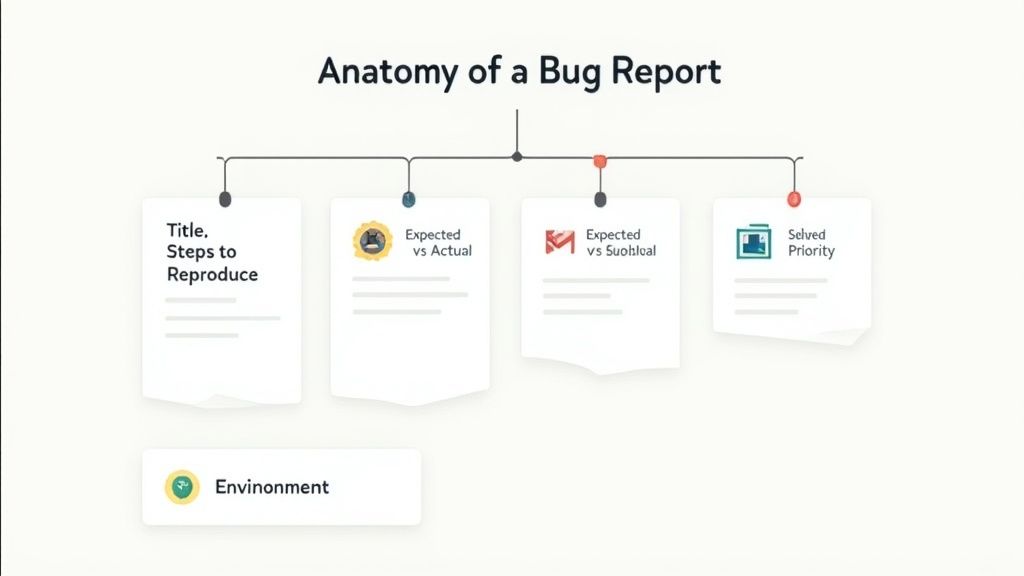
This isn’t just about making developers' lives easier. It’s about making the entire development cycle faster and more efficient. Think of each field in your bug report template as a vital clue in a detective story. Without all the clues, the mystery just can't be solved.
Let's break down the essential components that turn a good bug report into a great one.
Every bug report needs to tell a complete story. The fields in your template are the chapters of that story, guiding the developer from the initial problem to the final resolution. Omitting any one of them can leave critical gaps in understanding.
Here's a look at the essential fields that should be in every template.
Field Name | Purpose | Example |
|---|---|---|
Title | Provides a quick, scannable summary of the problem. | |
Description | A brief overview of the bug and its impact on the user. | |
Steps to Reproduce | A clear, numbered list of actions to trigger the bug. | |
Expected Result | What should have happened. | |
Actual Result | What actually happened. | |
Environment | The technical context (browser, OS, device). | |
Severity | The technical impact of the bug. | |
Priority | The business urgency to fix the bug. | |
Attachments | Screenshots, videos, or logs that show the bug in action. |
Having a template with these fields ensures no critical information is ever missed. It standardizes communication and helps your team resolve issues much, much faster.
The Title: A Make-or-Break First Impression
The title is the first thing anyone sees. A vague title like "Checkout Broken" is nearly useless. It forces the developer to open the ticket just to understand the basic context, which is a total waste of cognitive energy. A great title, on the other hand, provides immediate insight.
Try to be specific and structured. I've found a simple formula like [Feature] - [Specific Problem] works wonders.
Bad: Image upload fails
Good:
This title tells the developer exactly where the problem is (User Profile), what the action is (image upload), the specific conditions (PNGs > 2MB), and the outcome (infinite spinner). It's a mini-summary that helps with prioritization at a glance.
Steps to Reproduce: The Unskippable Blueprint
If a developer can't reproduce the bug, they can't fix it. It’s that simple. The "Steps to Reproduce" section is the most critical part of any bug report. It needs to be a foolproof, step-by-step guide that anyone on the team can follow to see the bug in action.
Here are a few rules I live by when writing these steps:
Start from a clean slate. Always begin from a common starting point, like the app's login screen or homepage. Don't assume the developer is already halfway through a workflow.
Use a numbered list. It creates a clear, sequential flow that's dead simple to follow.
Be ridiculously precise. Avoid vague language. Instead of "Click the profile icon," write "Click the circular user avatar in the top-right corner of the navigation bar."
The goal is to eliminate all guesswork. A developer shouldn't have to interpret your instructions; they should be able to follow them like a recipe to reliably trigger the exact issue you found.
Expected vs. Actual Results: The Core of the Problem
This is where you clearly define the conflict. It’s a simple but powerful comparison that frames the entire issue by explicitly stating what should have happened versus what actually occurred.
Expected Result: "After clicking 'Upload,' a success message 'Your profile picture has been updated' should appear, and the new image should be displayed in the avatar circle."
Actual Result: "After clicking 'Upload,' an infinite loading spinner appears, and the new image never replaces the old one. No success or error message is shown."
This direct comparison leaves no room for misunderstanding. It immediately highlights the deviation from the intended functionality, making the bug's impact crystal clear. For more guidance on this, check out our in-depth article on how to write bug reports that get fixed, not ignored.
Environment Details: The Contextual Clues
Bugs can be sneaky. Sometimes, they only appear under very specific conditions. That's why providing detailed environment information is non-negotiable. Without it, a developer might waste hours trying to reproduce an issue that only occurs on a specific browser or operating system.
Your template absolutely must capture:
Browser and Version: (e.g., Chrome 125.0.6422.112)
Operating System: (e.g., macOS Sonoma 14.5)
Device Type: (e.g., Desktop, iPhone 15 Pro)
Screen Resolution: (e.g., 1920x1080)
This used to be a pain to collect manually, which is why tools like Beep are a lifesaver. It automatically captures all this technical metadata with every comment, eliminating the guesswork and ensuring developers always have the full picture.
Severity vs. Priority: Understanding Impact and Urgency
Finally, it's vital to distinguish between severity and priority. They aren't the same thing, and confusing them can lead to misguided development efforts.
Severity: Describes the technical impact of the bug on the system. A Critical severity bug might be one that crashes the entire application or causes data loss. A Minor one could be a typo on a settings page.
Priority: Describes the business urgency of fixing the bug. A High priority bug is one that needs to be fixed immediately, maybe because it's blocking a major feature release or affecting a large number of users.
Here's a real-world example: a minor typo (Low Severity) on the pricing page could be a High Priority fix. On the flip side, a rare edge-case bug that crashes an admin-only feature (Critical Severity) might be a Low Priority fix for the next sprint. Getting this right ensures your team is always working on what matters most.
Ready-to-Use Templates for Real-World Scenarios
Let's be real: a single, one-size-fits-all bug report template almost never works. The insane level of detail you need for a critical production bug is complete overkill for a minor typo on an internal dashboard. To actually be effective, your template has to match the context of the problem and, just as importantly, the team that's going to fix it.
This is exactly why having a few tailored templates in your back pocket is such a game-changer. I’ve put together three distinct, copy-and-paste-ready templates below, each one designed for common situations I've run into time and again. They’re all built to capture the right information from the right person at the right time.
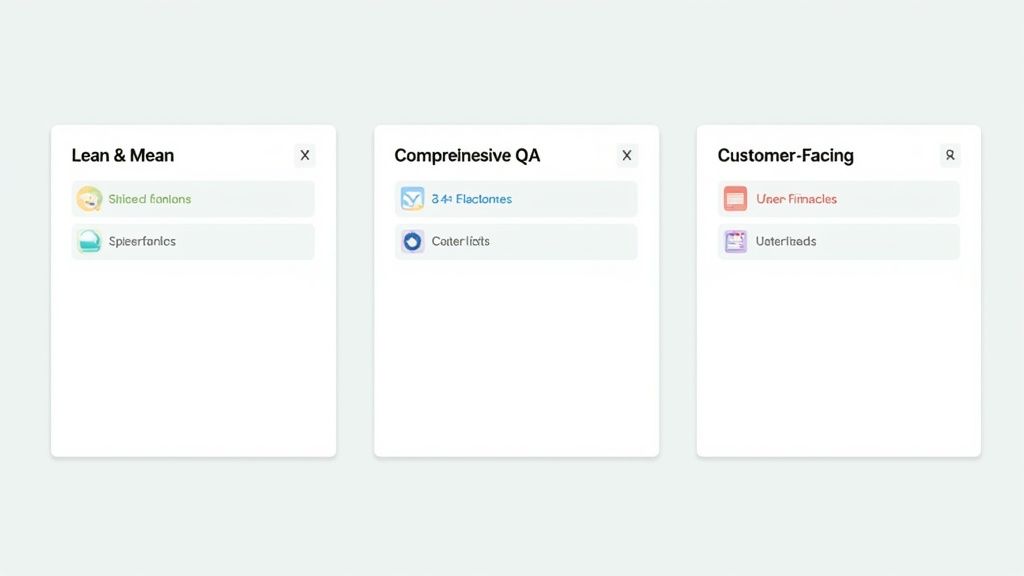
The Lean and Mean Template
This one is all about speed and simplicity. It’s my go-to for small, agile teams, internal tools, or early-stage startups where everyone is moving a million miles an hour and shares a ton of context. The goal here isn't to create a massive document; it's about flagging an issue fast so it can be squashed without bogging anyone down in process.
Use this for:
Internal dashboards or admin panels.
Small projects with a tight-knit team.
Low-severity visual tweaks or copy bugs.
Here’s the template:
Title: [Feature] - [Brief summary of the issue]URL: [Link to the page where the bug occurred]What's Happening: [A short, plain-language description of the problem]What Should Happen: [A quick sentence on the expected behavior]Screenshot/Recording: [Attach a visual here]
You'll notice this minimalist approach intentionally cuts out fields like priority and severity. That’s because it assumes the team can quickly hash that out in a daily stand-up or a quick Slack huddle.
The Comprehensive QA Template
Now, when you have a dedicated QA team in the mix, you need something much more robust. This version is designed for those thorough, formal testing cycles where precision is everything. It packs in specific fields for build versions, test cases, and deeper technical data, giving developers every possible clue they need to solve those trickier, more complex issues.
This kind of detailed template is a huge factor in the productivity of software teams I've worked with. Having a central, structured way to log and track bugs just makes life easier for everyone. If you're curious about how adaptable templates can fit different workflows, there are some valuable insights on Screendesk.io that are worth a read.
Use this for:
Formal QA testing cycles.
Complex, multi-step user workflows.
Bugs that are notoriously difficult to reproduce.
Here is the detailed QA template:
Title: [Feature] - [Clear, specific summary of the bug]Bug ID: [Unique identifier]Reported By: [QA Tester's Name]Date: [Date of report]
Description:[Detailed overview of the issue and its impact on functionality.]
Build/Version: [e.g., v2.5.1-staging]Test Case ID: [Link to the related test case, if applicable]
Environment:
Browser: [e.g., Chrome 125.0]
OS: [e.g., Windows 11]
Device: [e.g., Desktop]
Screen Resolution: [e.g., 1920x1080]
Steps to Reproduce:
[First step]
[Second step]
[Third step]
Expected Result:[What was supposed to happen.]
Actual Result:[What actually occurred.]
Severity: [Critical / High / Medium / Low]Priority: [High / Medium / Low]
Attachments:
[Annotated screenshot]
[Screen recording of the steps]
[Console logs / Network requests]
The Customer-Facing Template
When you’re collecting feedback directly from users, simplicity and a friendly tone are non-negotiable. This template is designed specifically for things like support forms, feedback widgets, or helpdesks. It deliberately avoids technical jargon and instead focuses on getting the user's experience in their own words—which, by the way, can provide some of the most invaluable insights you'll ever get.
The most important thing here is to lower the barrier for reporting. A user won't fill out a 15-field form, but they will describe their problem if you make it easy.
Use this for:
Website feedback widgets.
Customer support intake forms.
User acceptance testing (UAT) with non-technical stakeholders.
Here’s a friendly template you can use for your customers:
What were you trying to do?[Text area for user to describe their goal]
What went wrong?[Text area for user to describe the problem they encountered]
Can you share a link to the page where this happened?[URL field]
Is there anything else we should know? (Optional)[Text area for extra details]
Please attach a screenshot if you can![File upload button]
This structure is fantastic because it helps translate a user's frustration into a clear, actionable starting point for your internal team. Think of it as the first crucial step in creating a more formal bug report later on.
Making Your Bug Reports Impossible to Ignore
If a developer can’t reproduce a bug, they can’t fix it. It's the golden rule of software development. A vague report forces them to play detective, burning precious time trying to piece together clues instead of shipping code.
This is where a solid bug report template really proves its worth—it guides you to provide irrefutable proof. Let’s get into the nitty-gritty of how to write reproduction steps that leave no room for error and visuals that tell the whole story in a single glance.
Writing Steps That Eliminate All Guesswork
The "Steps to Reproduce" section is the absolute heart of your bug report. The goal here is to create a foolproof recipe that anyone, from a senior developer to a new QA intern, can follow to see the bug with their own eyes. Ambiguity is your enemy.
To get this right, just stick to a few simple principles:
Always Start from a Known Point: You have to assume the developer has zero context. Kick things off from a universal starting line, like the app's login page or the main dashboard.
Use a Numbered List: This one is non-negotiable. It creates a clean, sequential path that’s a breeze to follow and reference. "First do this, then click that" just doesn't cut it like a clean 1-2-3 list.
Be Specific with Verbs and Locations: Use active, precise language. Instead of a lazy "Change the setting," go with something crystal clear like, "Navigate to the 'Profile Settings' page and toggle the 'Enable Email Notifications' switch to the off position."
Think of it like this: your reproduction steps should read like a script for a robot. There should be zero room for interpretation, no ad-libbing, and absolutely no assumptions. Every single action needs to be explicit and direct.
The Power of Visual Storytelling
While text is essential, visuals are what make a bug report truly undeniable. A well-chosen screenshot or a quick screen recording can explain a complex problem in seconds—something that might take paragraphs to describe with words. In fact, studies show that visual aids can improve learning and retention by up to 400%, and that principle absolutely applies to debugging.
Visuals aren't just a nice-to-have; they offer a layer of proof that text alone can't. They show the problem exactly as it happened, wiping out any chance of misinterpreting your written steps.
When to Use a Screenshot vs. a Screen Recording
Picking the right visual format is key. Each has its strengths, and knowing when to use which will make your bug reports so much more effective.
Use a Screenshot for Static UI Issues: This is perfect for problems like typos, misaligned buttons, incorrect colors, or layout bugs that are always present on the screen.
Use a Screen Recording for Interaction Bugs: If the bug only pops up after a series of actions—like a button that doesn't work, a dropdown menu glitching out, or a broken animation—a recording is a thousand times better. It captures the entire user journey and the resulting failure in motion.
Supercharge Your Visuals with Annotations and Data
A raw screenshot is good, but an annotated one is great. Tools that let you draw arrows, add text, or highlight specific areas can turn a simple image into a guided tour of the problem. This is where you can learn more about how to annotate a screenshot effectively to really pinpoint what's wrong.
Modern tools take this even further. For instance, Beep automatically bundles critical technical data with every visual you capture. When you drop a comment on a webpage, it doesn’t just snap a screenshot; it also grabs the console logs and network requests from that session.
This creates an airtight bug report that gives developers not just the "what" (the visual problem) but also the "why" (the underlying technical errors), which can slash debugging time.
Integrating Bug Reporting into Your Team's Workflow
Look, a powerful bug report template is only half the battle. Its real value comes when it’s so deeply embedded into your team's daily tools that using it becomes second nature. The goal is to make reporting a bug completely frictionless. When you ditch the manual steps and plug your template directly into platforms like Jira, Slack, or Notion, you're building a seamless pipeline from discovery right through to resolution.
This is where the magic of automation really kicks in. Picture this: a client drops a comment on your staging site, and a perfectly formatted Jira ticket instantly appears, already filled out with their feedback, a screenshot, and all the technical data your devs need. That’s not some far-off dream; that’s what a modern, efficient workflow looks like.
Connecting Your Template to Project Management Tools
The single biggest time-saver is integrating your bug reporting directly with your project management software. Let's be honest, manually copying and pasting details from an email or spreadsheet into a Jira ticket isn't just tedious—it’s a recipe for mistakes. Important details get missed, and context gets lost in translation.
A direct integration means that when someone submits a bug through a tool like Beep, it doesn't just land in an inbox to die. It can automatically:
Create a new Jira issue with the title, description, and attachments already in place.
Populate a new card on a Trello board in the "Incoming Bugs" column.
Add an item to a Notion database with all the properties correctly mapped out.
This kind of automation ensures every bug report gets exactly where it needs to go, assigned to the right person, without anyone having to lift a finger. This is a core part of successful software delivery, just as critical as any other development consideration. For example, when teams map out the essential factors for Android app development, a streamlined bug-tracking process is always a non-negotiable part of the plan.
Creating Real-Time Alerts with Slack
Not all bugs are created equal. A minor typo can probably wait, but a critical checkout failure needs eyes on it immediately. By integrating your bug reporting with a communication tool like Slack, you can create a real-time alert system for high-priority issues.
You can set up rules so that any bug reported with a "Critical" or "High" severity instantly pushes a notification to a specific Slack channel, like . This message can include a direct link to the Jira ticket and a quick summary of the problem, making sure the right developers see it within seconds.
This transforms your bug reporting from a passive documentation process into an active, real-time response system. It ensures that the most impactful issues are never left sitting in a backlog, waiting to be discovered.
The simple flowchart below shows just how powerful a visual-first approach can be for capturing the essentials.
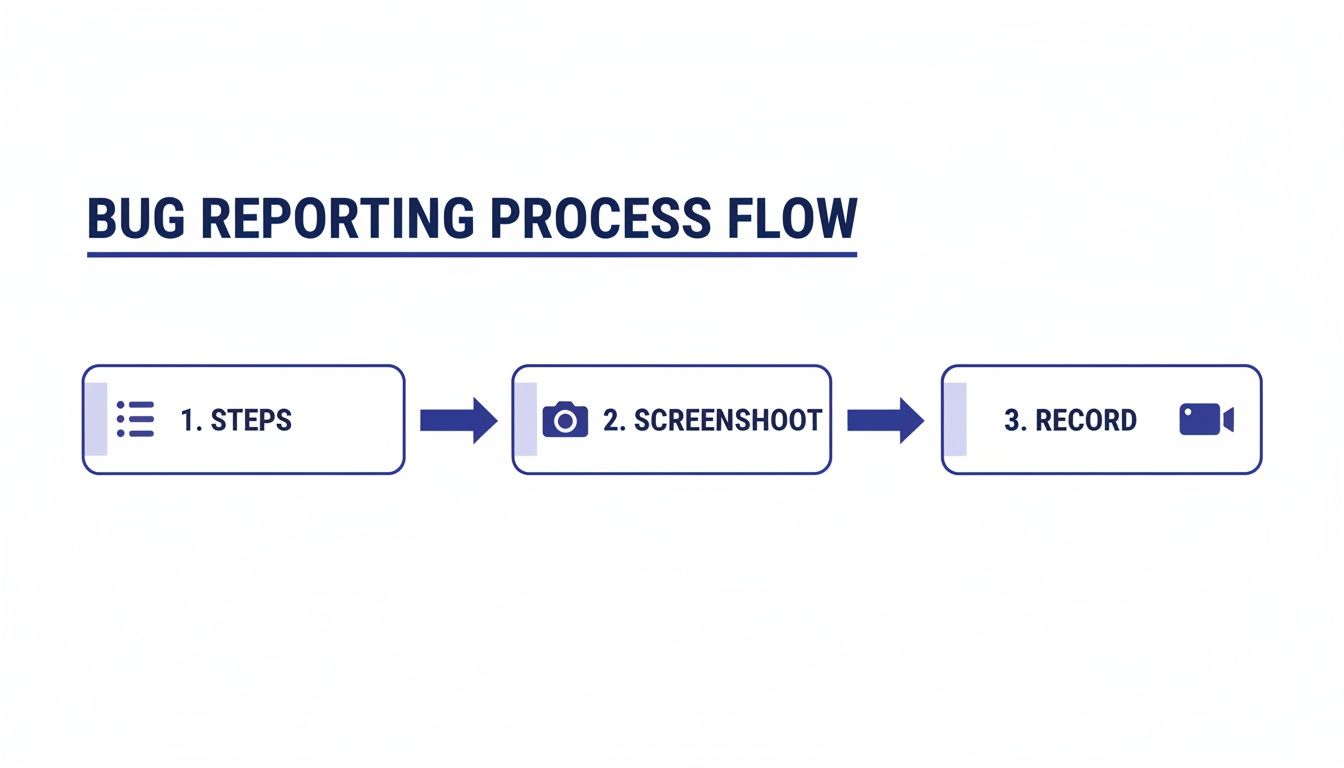
This process—capturing steps, screenshots, and recordings—is all about building a comprehensive report that kills any ambiguity for developers.
Building a Seamless Handoff
Ultimately, integration is all about creating a clean, automated handoff between the person who finds the bug and the person who has to fix it. Every manual step in that process introduces friction and the potential for delay.
A well-integrated system makes sure that by the time a developer even sees a bug report, it's already packed with all the context they need. They get the reporter's description, an annotated screenshot, a screen recording of the steps, and crucial environment data like the OS, browser, and console logs. This is exactly why having the right software is so important. For a deep dive, check out our guide on the 12 best bug tracking tools for dev teams in 2025.
By automating this data collection and delivery, you eliminate the frustrating back-and-forth that plagues so many teams. You free up your developers to do what they do best: solve problems and build great software.
Answering Your Team's Toughest Bug Reporting Questions
Even with a killer template, bug reporting can feel like it has a bunch of unwritten rules. Questions always pop up, and friendly debates can sometimes slow everyone down. It's a common story for developers, QAs, and product managers alike.
Let's clear the air and tackle some of the most frequent questions I hear. Think of this as your go-to FAQ for getting your team aligned and speaking the same language. Nailing these small details makes a huge difference in how smoothly your projects run.
What Is the Most Important Part of a Bug Report?
I'll say it loud and clear: the "Steps to Reproduce" are everything. While every field in a bug report template has its place, this is the one that makes or breaks it. If a developer can't reliably recreate the bug, they have almost no chance of fixing it. It's the absolute foundation of the report.
These steps need to be crystal clear, concise, and totally foolproof. You should always guide the developer from a known starting point (like the login screen) straight to the problem, leaving zero room for guesswork. Without this, even the most detailed description is just a story about a problem nobody can find.
A bug report without clear reproduction steps is like a map with no starting point. It tells you a treasure exists but gives you no practical way to begin the search. Your developers will be left wandering aimlessly.
How Much Detail Is Too Much Detail?
Ah, the classic balancing act. The right amount of detail is whatever a developer needs to reproduce the bug and understand its context—without drowning them in noise. A good rule of thumb is to make sure all the core fields are filled out. Things like environment details, a clear description, and precise reproduction steps are completely non-negotiable.
So, where do you draw the line?
Essential Detail: This includes the OS, browser version, screen resolution, any console logs, network requests, and ideally, a screen recording of the issue happening. This data gives the developer irrefutable context.
Too Much Detail: Steer clear of personal opinions about the feature, long speculative paragraphs on what you think the cause might be, or irrelevant user history. Just stick to the objective facts.
When in doubt, it’s almost always better to provide more technical data than less. Things like console logs are rarely "too much detail"—they often contain the exact clues a developer needs to squash the bug fast.
Who Should Be Responsible for Setting Bug Priority?
This is a frequent point of contention, and honestly, the best answer is that it's a team effort. The responsibility is usually split between two key roles, with each bringing a different, vital perspective.
Here’s how it usually shakes out:
The Reporter (QA, PM, etc.) sets the Severity. Severity is the technical measure of impact. How badly does this bug break the system? A site-wide crash is "Critical," while a simple typo is "Minor."
The Product Manager or Team Lead sets the Priority. Priority is the business measure of urgency. How soon does this actually need to be fixed? This decision hinges on user impact, business goals, and what the team can handle in the current sprint.
For example, a minor visual glitch (Low Severity) on the checkout page could still be a High Priority fix because it might be costing the business money. Getting this right comes down to clear communication between the person who found the bug and the person planning the work.
Should You Close a Bug Report If You Cannot Reproduce It?
Don't be too quick to hit that "close" button. An unreproducible bug is one of the most frustrating things in software development, but closing the ticket immediately can mean a real issue gets swept under the rug.
Before you give up, take a couple of extra steps. Circle back with the original reporter. Ask for more details, a screen recording, or the exact environment they were in. It could be an intermittent issue or one that only pops up under very specific conditions you haven't managed to replicate.
If, after a few solid attempts and follow-ups, the bug remains a ghost, then it's okay to close the ticket. But always—always—leave a detailed comment explaining why (e.g., "Attempted to reproduce on Chrome/macOS and Firefox/Windows without success. Please re-open if this issue appears again with new logs or a recording."). This keeps the door open if it decides to reappear later.
Ready to eliminate the back-and-forth and create crystal-clear bug reports every time? Beep lets your team and clients drop comments directly on your live website, automatically capturing screenshots, console logs, and all the technical data your developers need. Start your free trial and streamline your workflow today.
Comments