
.png)
what is pdf annotation: A practical guide to annotations and collaboration

Let’s start with the basics. PDF annotation is simply the digital version of scribbling notes in the margins of a book or highlighting a key passage in a report. It’s all about adding your own layers of information—like notes, comments, highlights, and other marks—directly onto a PDF. This simple act transforms a static, "read-only" file into a dynamic space for collaboration, feedback, and personal study.
What's the Big Deal with PDF Annotation, Anyway?
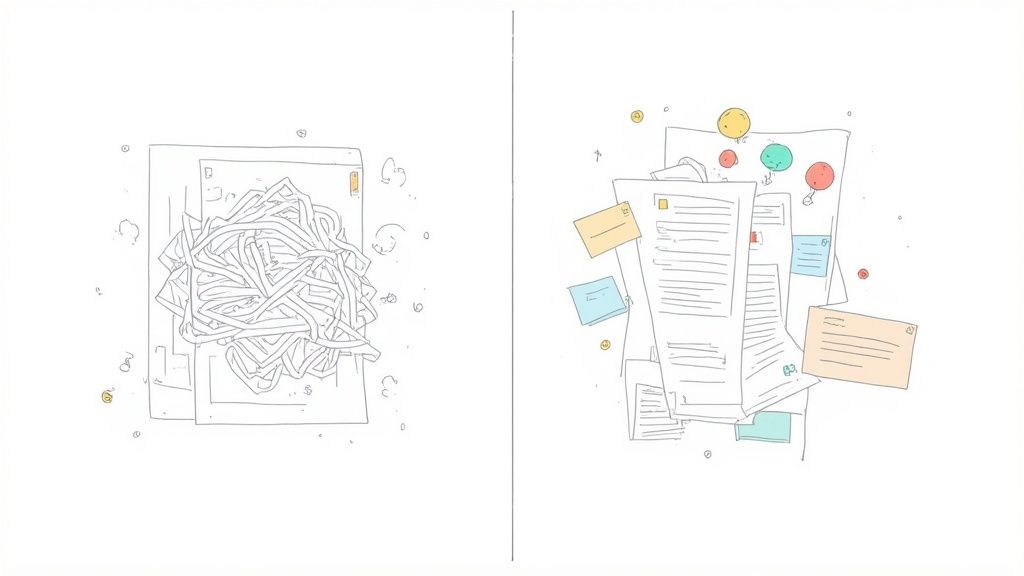
Imagine you’re an architect trying to get feedback on a blueprint. You could send a long, confusing email saying something like, "On page 3, in the top left corner, the second window from the right needs to be bigger." It’s slow, clunky, and leaves way too much room for misunderstandings. We've all been there, and it's frustrating.
Now, imagine you could just circle that exact window on the digital blueprint with a red pen and add a quick comment: "Increase width by 15%." That's PDF annotation in a nutshell. It makes communication direct, contextual, and ridiculously efficient, turning a one-way document into a two-way conversation.
From Static Pages to Interactive Hubs
Adding notes to PDFs isn't new. This feature has been around since Adobe rolled out Acrobat back in 1993, which was a huge leap in making sure documents looked the same no matter what computer you opened them on. What started as basic highlights and sticky notes has since evolved into a full suite of tools, including digital signatures and even real-time collaborative editing.
This evolution was driven by a real need to make our digital workflows less painful. Today, it’s an indispensable tool for just about everyone, from professionals to students, allowing us to actively engage with documents instead of just passively reading them.
Annotation turns reading into an activity. It’s how you make a document your own, layering your thoughts, questions, and insights right onto the page.
Why This Matters in Today’s Workflows
Whether you're in an office or a classroom, clear communication is everything. PDF annotation is the glue that holds review cycles together by creating a single source of truth for all feedback.
It's a game-changer because it helps you:
Kill Ambiguity: No more vague feedback. You can point to the exact spot you’re talking about.
Centralize Everything: All comments live in one place—the document itself—not scattered across a dozen emails and Slack threads.
Speed Up Reviews: Less back-and-forth means faster approvals and projects that actually finish on time.
And for students? It’s a study superpower. If you’ve ever tried to absorb a dense textbook, you know that understanding how to study a textbook effectively is half the battle. Marking up digital texts is a proven way to boost retention and actually understand what you're reading.
Your Essential PDF Annotation Toolkit
Alright, let's dive into the tools of the trade. Getting a handle on PDF annotation is really about knowing what you've got in your toolkit. Think of it less like a single feature and more like a well-stocked workbench. Every tool has a specific job, and knowing which one to grab is the key to giving feedback that’s crystal clear.
You wouldn’t use a sledgehammer to hang a picture frame, right? Same idea here. Using a freehand drawing tool when you need to leave a detailed paragraph of feedback is just going to create a mess. Mastering the basics ensures your message lands exactly as you intended, which saves everyone a ton of time and headaches.
The Core Annotation Types
Most PDF software comes with a standard set of markup tools. The icons might look a little different from app to app, but they all do pretty much the same thing. Let’s break down the most common ones you'll be using.
To give you a quick overview, I’ve put together a little cheat sheet. Think of this as your go-to guide for picking the right tool for the job.
Common PDF Annotation Tools and Their Best Uses
Annotation Type | Primary Function | Best For |
|---|---|---|
Highlights & Underlines | Emphasize existing text | Calling attention to key data, important contract clauses, or specific sentences. |
Comments & Sticky Notes | Add detailed text feedback | Asking questions, suggesting alternative phrasing, or providing in-depth context. |
Ink & Drawing Tools | Provide freeform visual cues | Circling design elements, drawing arrows to show movement, or making quick visual marks. |
Stamps | Indicate document status | Quickly marking a file as "Approved," "Draft," or "Confidential." |
Shapes & Callouts | Isolate specific areas | Boxing off a paragraph for review or using an arrow with a text box for precise notes. |
Each of these tools helps you communicate more effectively, turning a static document into a dynamic conversation. Let's look a little closer at a few of them.
Everyday Essentials
Highlights and Underlines: These are your digital highlighters. Simple, direct, and perfect for drawing the eye to specific words or phrases. I use them all the time to flag key stats in a report or critical lines in a legal doc.
Comments and Sticky Notes: This is your go-to when you have more to say. Instead of cluttering the page, you can attach a neat text box to a specific spot. It’s perfect for asking questions or suggesting changes without derailing the document's flow.
Ink and Drawing Tools: For those moments when words just aren't enough. These tools give you the freedom of a pen, which is fantastic for visual feedback—circling a logo you want to discuss, drawing an arrow to connect two ideas, or just making a quick, gestural mark. The skills you pick up here are super versatile; for instance, learning how to annotate a screenshot uses a lot of the same principles for giving clear feedback on websites or apps.
Specialized Tools for Pro Workflows
Beyond the basics, a few tools are designed for more specific, professional tasks. These are the ones that really level up your team's workflow.
The best annotation isn't about adding the most comments—it's about adding the right comments with the right tool to make the feedback instantly understandable.
Stamps: Need to signal a document's status in a split second? Stamps are your answer. They're basically pre-made graphics that say things like "Approved," "Confidential," or "For Review." Slap one on the page, and everyone on the team immediately knows where things stand.
Shapes and Callouts: These are all about precision. Tools like boxes, circles, and arrows let you isolate specific areas without any ambiguity. I’m a big fan of the callout box, which pairs a shape with a text comment. It's the cleanest way to point to a chart or image and add your note right next to it, keeping everything tidy and connected.
How Teams Actually Use Annotation
Theory is one thing, but seeing PDF annotation in the wild is where it all clicks. Suddenly, it’s not just a feature—it’s the engine that keeps projects moving. Let's walk through a couple of real-world scenarios to see how smart teams use a solid annotation process to get things done faster and with way less headache.
Once you see these examples, you’ll get why a shared, visual feedback loop beats those messy, easy-to-misunderstand email chains every single time.
Scenario One: A Product Team Nailing Down a New Feature
Picture this: a product team is working on a brand-new user dashboard. The UX designer finishes up the latest wireframes, bundles them into a single PDF, and shoots it over to the key players: the product manager, a lead engineer, and the head of marketing.
Instead of blocking out an hour for a meeting or kicking off an email thread that’ll quickly spiral out of control, the team jumps into the document to work on their own time.
The Product Manager drops a comment right on the main navigation bar, asking, "Can we squeeze a direct link to the support docs in here?"
The Lead Engineer highlights the data visualization widgets. They add a quick technical note about API limitations and suggest a simpler chart type to keep load times snappy.
The Head of Marketing uses the drawing tool to circle the "Upgrade" button, commenting that it's buried and needs to pop more to actually drive conversions.
In under an hour, the designer has crystal-clear, actionable feedback from everyone. And the best part? Every comment is anchored to a specific spot in the design, so there’s no guesswork. No need to hunt through five different emails or Slack DMs—the PDF is now the one true source for this entire review cycle.
This is pretty much what it looks like in action. Users can drop sticky notes and highlights right onto the document, keeping all the feedback in one consolidated place.
The real magic here is that every single piece of feedback is tied to a location. It creates a clean, organized conversation that lives right inside the design itself.
Scenario Two: A Design Agency and a Client Syncing Up on a Brand Guide
Now, let's switch gears to a design agency finalizing a new brand guide for a client. We’ve all been there—the feedback process is a nightmare of endless email threads with vague notes like "the blue feels a bit off" or "can we make the logo bigger on page 12?" That kind of back-and-forth just leads to frustrating revisions and blown deadlines.
But by moving to a PDF annotation workflow, the agency completely flips the script. They send the brand guide PDF over, and the client uses the annotation tools to give laser-focused feedback.
A well-annotated PDF does more than just gather comments—it builds consensus. It turns a bunch of scattered opinions into a clear, unified project direction.
The client can now get super specific:
Highlight the exact hex code for the color they want to tweak.
Use a shape tool to draw a box around the logo on page 12 and add a comment saying, "Let’s increase the size by 10%."
Drop an "Approved" stamp on sections that are good to go, giving the design team an unmistakable green light.
This structured process makes sure every bit of client feedback is totally unambiguous and directly connected to the element it’s about. The agency dodges misinterpretations, slashes the number of revision rounds, and can move ahead with total confidence. The whole project timeline just got a lot shorter.
Creating a Seamless Collaborative Workflow
Having the right annotation tools is a great start, but the real magic happens when your team has a clear, repeatable process. An effective PDF annotation workflow turns chaotic feedback cycles into a predictable system for getting work done. Without one, you’re just inviting a digital free-for-all where comments get lost, versions get mixed up, and deadlines quietly slip away.
We’ve all been there, right? Drowning in endless email chains where critical feedback is buried in a reply-all nightmare, and nobody is sure which version of the document is the actual latest one. A structured workflow brings all that conversation back into a single, centralized document. It creates clarity and one source of truth.
The infographic below shows a simple but powerful feedback loop that many design and product teams live by.
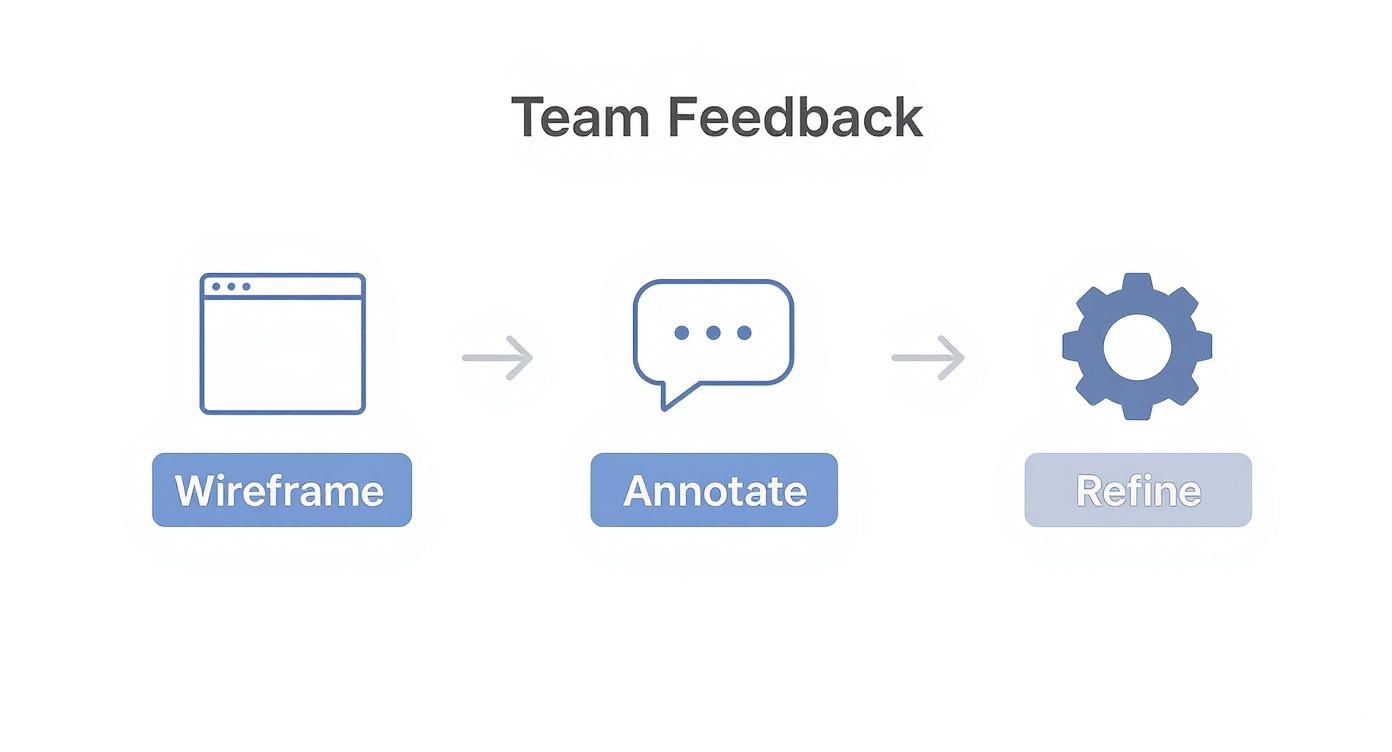
This visual breaks down how a project moves from an initial wireframe, through a focused annotation phase, and into refinement, creating an organized cycle of constant improvement.
Establishing Clear Ground Rules
Before anyone even opens a document, it’s a game-changer to set some ground rules. Trust me, this simple step prevents so much confusion down the line and can make the entire review process 80% more efficient. A shared understanding of how to give feedback is the foundation of a smooth workflow.
Consider creating a simple "Annotation Key" for your team. It doesn't need to be some 10-page document; it just needs to be consistent.
Color-Coding: Assign colors to different types of feedback. For example, red could be for urgent issues or errors, yellow for suggestions and ideas, and green for approvals or things that are working well.
Actionable Comments: Make it a rule that every comment must be constructive and actionable. Instead of a vague, "I don't like this," encourage teammates to say, "Can we try a different font here to improve readability?"
@Mentions: Use @mentions to tag specific people in comments. This assigns clear ownership and makes it obvious who is responsible for addressing each piece of feedback.
A great workflow isn’t about restricting feedback; it’s about structuring it so that every comment moves the project forward. Clarity is speed.
Managing Versions and Ensuring Accessibility
Without proper version control, collaboration can quickly descend into chaos. It’s absolutely vital to have a clear system for managing document iterations to make sure everyone is working on the most current file.
Adopt a straightforward naming convention like , , and so on. It’s simple, but it works. When a review cycle is complete, the project lead should be the one to consolidate all the feedback, create the new version, and archive the old one. This prevents anyone from accidentally hopping into an outdated document and wasting their time.
Finally, let's talk about accessibility—it's a key part of inclusive collaboration. When you’re adding annotations, try to make sure your comments are text-based whenever possible. While drawing tools are great for quick visual cues, screen readers can’t interpret them. Text comments ensure that team members who use assistive technologies can fully participate in the review process. For more ideas on improving team dynamics, check out our guide on the top remote team collaboration tools for 2025.
Choosing the Right PDF Annotation Tool for Your Needs
Once you have a solid process mapped out, the next move is finding the right software to bring it to life. The market for PDF annotation tools is absolutely buzzing, which tells you just how much demand there is for good digital document tools across pretty much every industry.
The growth here is no joke. The global PDF software market was valued at around USD 2.15 billion in 2024 and is on track to hit USD 5.72 billion by 2033. You can dig into more insights about this expanding market on marketreportsworld.com.
All this growth means you have tons of options, but let's be real—it can also be completely overwhelming. To cut through the noise, start by thinking about what you actually need. Are you a student who just needs to highlight some notes, a freelancer juggling client feedback, or a big team that needs iron-clad security and real-time collaboration?
Defining Your Primary Use Case
Honestly, the "best" tool is the one that fits your workflow like a glove. Let's break down the main categories to help you figure out where you fit.
Free & Built-in Viewers: Think of the PDF viewers that come with your web browser or operating system. They're perfect for quick, one-off tasks like signing a contract, dropping in a text box, or making a few highlights. They get the job done fast but don't expect any fancy features for team projects.
Powerful Desktop Software: This is where the heavy hitters like Adobe Acrobat Pro live. These apps are packed with a massive suite of features for power users—we're talking advanced editing, security controls, and every annotation option under the sun. They're ideal for individuals or small teams who need total control over their documents.
Cloud-Based Collaborative Platforms: These are the modern, team-first solutions. They let multiple people mark up the same document at the same time and often plug right into your project management tools. Their biggest strength is creating one central place for feedback that anyone can access from anywhere.
The goal isn't to find the tool with the most features, but the one that solves your specific problem with the least amount of friction. An intuitive interface often beats a bloated feature set.
Making the Right Choice
Building a smooth, collaborative workflow really comes down to using tools that don't get in your team's way. Understanding the basics of user experience (UX) design principles can help you spot software that your team will actually enjoy using.
And if your work involves marking up live websites instead of static PDFs, you might want to look at tools built specifically for that. For a closer look at those options, check out our guide on the 14 best website annotation tools in 2024.
By focusing on your specific needs—whether it's collaboration, security, or pure simplicity—you can pick a tool that feels like it was made just for you.
Let's be honest, the world of PDF annotation is way past just digital highlighters and sticky notes. The next big thing is already here, and it’s all about artificial intelligence and moving our feedback from static documents into the live, breathing world of the web. This isn't just a small step; it's about turning a jumble of comments into smart, usable insights.
Think about a tool that doesn’t just collect your team's feedback but actually gets it. AI is starting to do the heavy lifting for us. Instead of you manually sifting through dozens of annotations to find a pattern, AI-powered tools can spot recurring themes, boil down the key points, and even flag when two stakeholders have left conflicting notes. That means less time playing detective and more time actually solving problems.
From Static Files to Live Websites
That core idea of PDF annotation—pointing to a specific spot and dropping a comment—is now jumping over to the web itself. And trust me, this is a huge leap. A PDF mockup is great for a snapshot in time, but it completely misses the feel of an interactive website or app.
Web annotation tools are the bridge. They let your team comment directly on interactive elements, animations, and user flows exactly as they are. A designer can drop a pin right on a button that feels slow and say, “The hover state is lagging here.” That's feedback you could never, ever communicate on a flat PDF.
The next frontier isn't just about marking up documents; it's about creating a collaborative layer over our entire digital world, from static reports to live applications.
This whole shift is part of a bigger trend. The AI annotation market, which was valued at USD 1.92 billion in 2025, is expected to explode to USD 13.11 billion by 2033. That’s a massive annual growth rate of 27.2%. If you're a data nerd like me, you can dig into the growth of AI annotation tools at Precedence Research for more info.
For anyone building web projects, this is a game-changer. I’ve seen it firsthand with tools like Beep. It mashes together the crystal-clear communication of visual annotation with the real-world context of a live website. It turns what used to be a dull, static review process into a living conversation about the product you're actually building.
Common Questions About PDF Annotation
Alright, so you're getting ready to jump into PDF annotation. As you start using it more, you'll probably run into a few questions. I've been there! Getting these common questions sorted out early on makes everything smoother, so let's tackle the ones I hear most often.
Can I Annotate a PDF on Any Device?
Yep, you absolutely can. PDF annotation has become super flexible and works on pretty much any gadget you own.
On your phone or tablet, you can find a ton of apps that make it easy to mark up documents with a touchscreen while you're on the move. For the heavy-lifting, desktop and laptop software will give you the full toolbox with all the advanced features. Even better, most of the cloud-based tools sync everything automatically, so you can start marking up a design on your computer and add a few final notes on your phone later.
Is PDF Annotation Secure?
This is a big one. The short answer is: it depends. The security of your notes comes down to two things—the PDF’s own security settings and the tool you're using to annotate. If you're dealing with anything sensitive, you've got to use tools that offer features like password protection and end-to-end encryption.
Many professional tools also let you manage permissions, which is huge. You can control exactly who gets to see, add, or change annotations. My advice? Always take a minute to check out a tool's security policies before you start uploading confidential files.
Think of annotation as adding a transparent layer on top of your document. The original content remains untouched, while your feedback provides a clear guide for discussion and revision.
What Is the Difference Between Commenting and Editing a PDF?
This is a super important distinction to get right. Annotation (or commenting) is all about giving feedback on the document without actually changing the original content. You're essentially adding things like highlights, notes, and drawings on a separate layer—it's like putting sticky notes and transparent overlays on a physical printout.
Editing, on the other hand, is when you go in and directly change the original text, images, or layout of the PDF itself. So, in a nutshell: annotation is a conversation about the content, while editing is fundamentally changing the content itself.
Ready to move beyond static PDFs and bring collaborative feedback to your live web projects? Beep lets your team add contextual comments directly on your website, turning confusing feedback into clear, actionable tasks. See how much faster you can ship projects by trying Beep today. Learn more at https://www.justbeepit.com.
Comments